RealWorld Icon Editor features
RealWorld Graphics logo    Česky 
Log-in or register.   
IndexSoftwareGalleryTutorialsForumsUsers

RealWorld Icon Editor
What's New
In-Depth Features
Screenshots
Vista Icons
Download
Special Offers
Buy Online
RealWorld Cursor Editor
RealWorld Photos
RealWorld Paint.COM
Plug-ins and Resources
Batch Icon Extractor
Picture Resizer
Change Cursor
RealWorld SDK
Support
Links

Bookmark this page

del.icio.us iconDel.icio.us
Digg iconDigg it
StumbleUpon iconStumbleUpon
Yahoo MyWeb iconYahoo MyWeb
Furl iconFurl it


Is the speed of this web adequate?

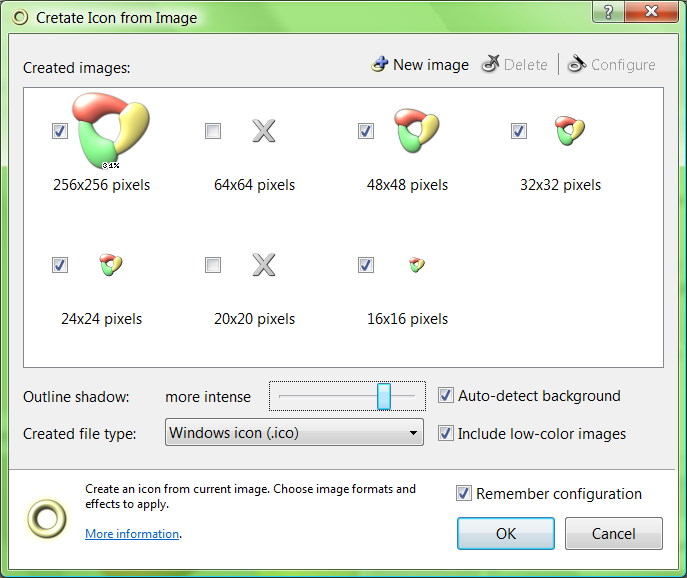
RealWorld Icon Editor detects background color when generating icons.
Yellow color is automatically detected as background.

Generate icons from images in RealWorld Icon Editor.
Space required by shadow is computed and reserved for each generated image.

Configure image to icon transformation in RealWorld Icon Editor
Configure generated image sizes and color-depths and additional effects to apply.

Editing non-square icon in RealWorld Icon Editor
Editing non-standard 40x20 pixels icon.

Blend overlay icon using clipboard in RealWorld Icon Editor
Use checkmark.ico from included icon library to make icons itended to configure given feature in target application.

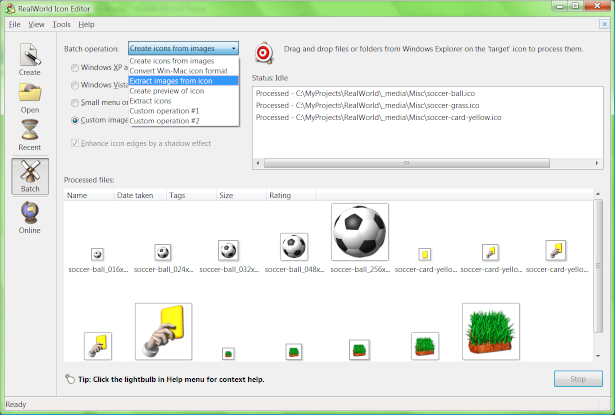
Extract icons from Windows applications in RealWorld Icon Editor
Select an executable file and get icons inside it.

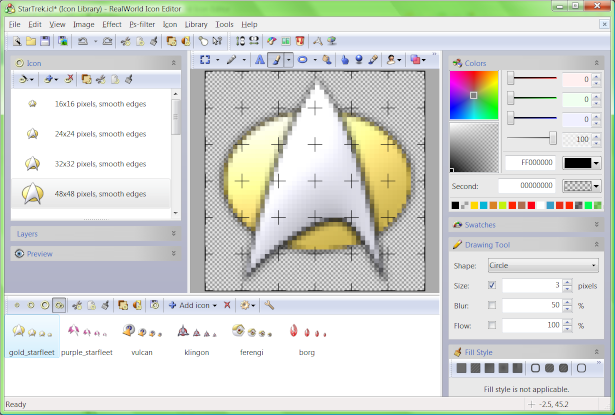
See previews of all icon images
Version 2005.2 features a new default layout for icon editing. This layout makes use of an improved image selection window that can display multiple icon images simultaneously.

Editing icon in Windows Vista Beta 1
Application runs on Windows Vista Beta 1. Installation must be performed using this workaround.

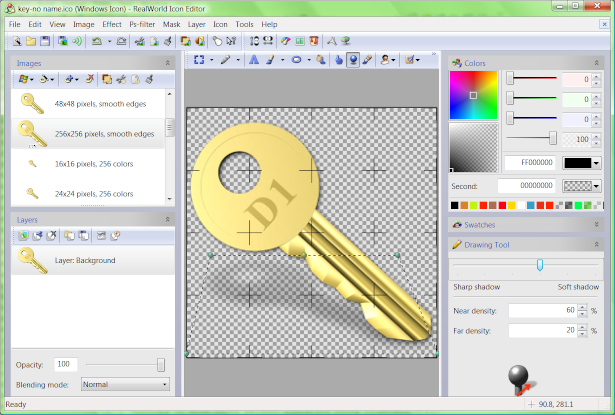
Drawing antialiased shapes with RealWorld Icon Editor
Different blending modes used by the ellipses.

Draw smooth curves
Draw curves with selected width and color by specifying points that the curve must go through.

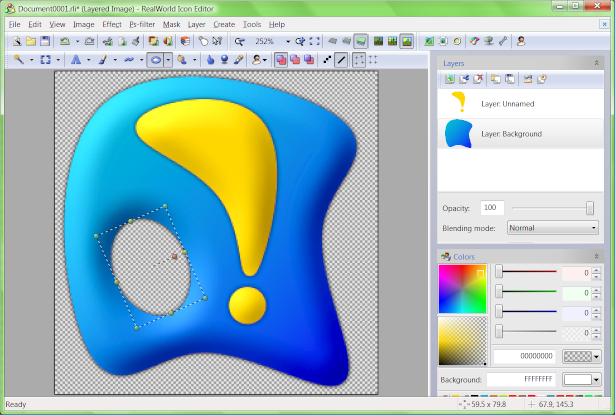
Fill areas with gradient color/alpha in RealWorld Icon Editor
Color and alpha gradient fill.

Resize and move rectangular area in RealWorld Icon Editor
Resize and move rectangular area.

View images in RealWorld Icon Editor
Image opens by default in "view mode".

Edit images in RealWorld Icon Editor
"Edit as raster image" button switches to edit mode.

New image filter in version 2005.2: Colorize image
Hue of each pixel was replaced by defined value using the "Colorize" image filter

Export images in RealWorld Icon Editor
"Export Image" command lets you export any image and set encoding options.

Using built-in 3D shapes in RealWorld 3D Graphics Editor
Built-in basic 3D shapes with different materials and textures.

More basic 3D shapes - torus and tank
Torus and tank basic shapes were added in version 2005.2

Various NURBS surfaces in RealWorld 3D Graphics Editor
Surface of revolution (yellow), extrusion surface (orange) and generic NURBS surface (red).

Editing triangle mesh in RealWorld 3D Graphics Editor
Create simple object parts directly from triangles.

Importing from 3D studio into RealWorld 3D Graphics Editor
Importing 3D objects from 3D Studio .3ds files.

WYSIVYG editing using grip points in RealWorld 3D Graphics Editor
Set positions and rotations of finger segments using control points.

Create hierarchical 3D objects in RealWorld 3D Graphics Editor
Subcomponents are put together to form one top level component for each tool.

Create parametric 3D models in RealWorld 3D Graphics Editor
Various aspect of the model are controlled by four top-level parameters.

Render 3D scenes into images in RealWorld 3D Graphics Editor
Set and save lights, camera and renderer properties. Instant scene preview.

Raytracing rendering device supports normal bump-maps
Slightly modified scene demonstrates use of normal bump-maps in raytracing rendering device. See the bumps on the ground and on the rock.

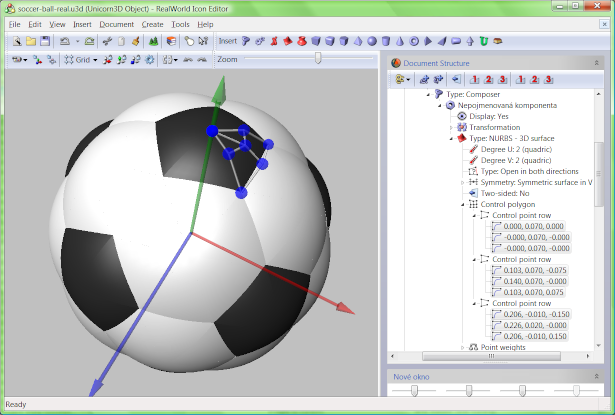
A display 3D model created in RealWorld Icon Editor
A simple display 3D model created in integrated Unicorn3D editor.

Parts of a display 3D model in RealWorld Icon Editor
6 rouned boxes + 1 box + one surface of revolution...

A computer case 3D model created in RealWorld Icon Editor
The computer case 3D model is even simpler than the display.

Parts of a computer case 3D model in RealWorld Icon Editor
This could not get any easier.

Setting camera, lights, and rendering device configuration in RealWorld Icon Editor
Setting camera, lights, and rendering device configuration.

Viewing an icon generated from 3D model of a computer in RealWorld Icon Editor
A complete icon after one click - get used to it.

Preparing to render the display model
Rendered image again. This time with different 3D model and updated camera.

Vieweing the 16x16 pixel image in RealWorld Icon Editor
Vieweing the 16x16 pixel image generated directly from 3D model.

Vista Icon Editor
Working with Vista icon in special edition of RealWorld Icon Editor 2005.2.1. Large image in Vista icons are stored using PNG compression.

Saving Vista icon
An icon can be saved without compression (Win XP), with large images compressed (default Vista format) or with all images compressed for minimum file size.

Creating new document
Create new Unicorn3D document by selecting the 'New Unicorn3D document' prototype and clicking the 'Create' button.

Empty Unicorn3D document
Components are added to Unicorn3D documents by clicking 'Insert component' toolbar button or 'Document' menu command.

Torus added to 3D model
Torus was added to the 3D model using 'Insert component' command. 3D view can be rotated using right mouse button and zoomed using mouse wheel.

Change torus matrial and radius
Modify torus matrial in the tree view and set the inner an outer radius using control points or overwrite values in tree view.

Insert surface of revolution
To create the central part of a speaker, insert new component - a 'Surface of revolution'.

Modify shape by dragging control points
Change the material color to the same color as in the previous step and drag the control points to adjust the surface shape.

Insert knots and control points
Select one of the control points in 3D view and the corresponding item will be highlighted in tree view. Click on the toolbar button named 'Insert knot...'.

Create speaker shape
Set the color of material to 0.2, 0.2, 0.2 and move the control points to proper positions in 3D view or type the exact value in tree view.

Set curve degree
Locate the 'Degree' item in the tree view. Right click on it and select '2 (quadric)' from the pop-up menu.

Insert knots into the final part
Insert three knots at positions 0.25, 0.5, and 0.75. In this case, the multiplicity will remain at 1 and therefore there will be no visible edges in the curve.

Create magnet shape
Position the control points according to the screenshot and modify material color of this shape to 0.2, 0.2, 0.6.

Set positions of speaker parts
The position of the speaker edge is wrong and needs to be fixed. We will move it up by applying translation.

Configure camera position and direction
There are many ways to configure camera. One of them is to rotate and zoom the 3D view and then clicking 'Camera from 3D view' button. Alternativelly, the camera properties may be entered manually in tree view.

Configure lights
After the lights are added, some of their properties are controlled by control points in 3D view. Others are only configured from tree view.

Creating icon from a rendered image
Adjust the image size to 512x512 to get better results, create an icon by clicking a toolbar button, and then OK twice.

Save the final icon
The icon was generated, the only thing left is to save it.

Creating 3D models
This 3D model was created in RealWorld Icon Editor and used to make a BMW icon in the set of car manufacturers' logos.

Rendering images
Reproducible results: 'Rendered Image' holds a snapshot of camera settings, lighting, rendering properties and image dimensions.

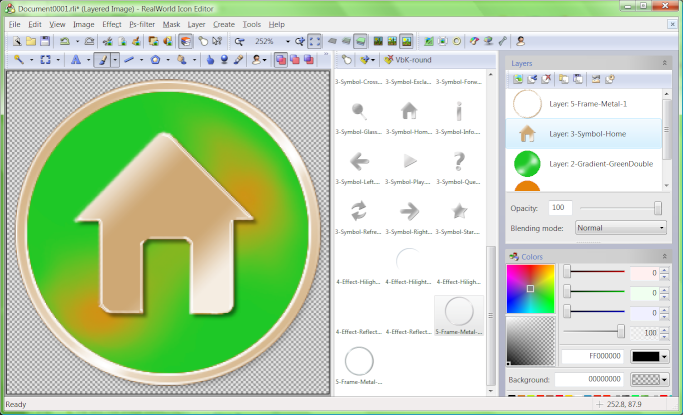
Editing icons
All functionality usually found in a professional icon maker is there.
And more: Tutorial on making a speaker icon.

Converting image to icon
An icon is created from image by clicking one of the marked toolbar buttons.

3D text model from two parts
This model was made from two components ('3D' and 'text'). A rotation and translation is applied on the 'text' part.

Turning 3D text model into image
Preparing a scene with a model of 3D text for rendering. The blue dots represent multiple directional lights used to create a soft shadow.

Copyright © 2005-2009 RealWorld Graphics. Contact: info@rw-designer.com.